Security
The security settings allow you to manage the users and roles for those users within your Consultationly account.
Users
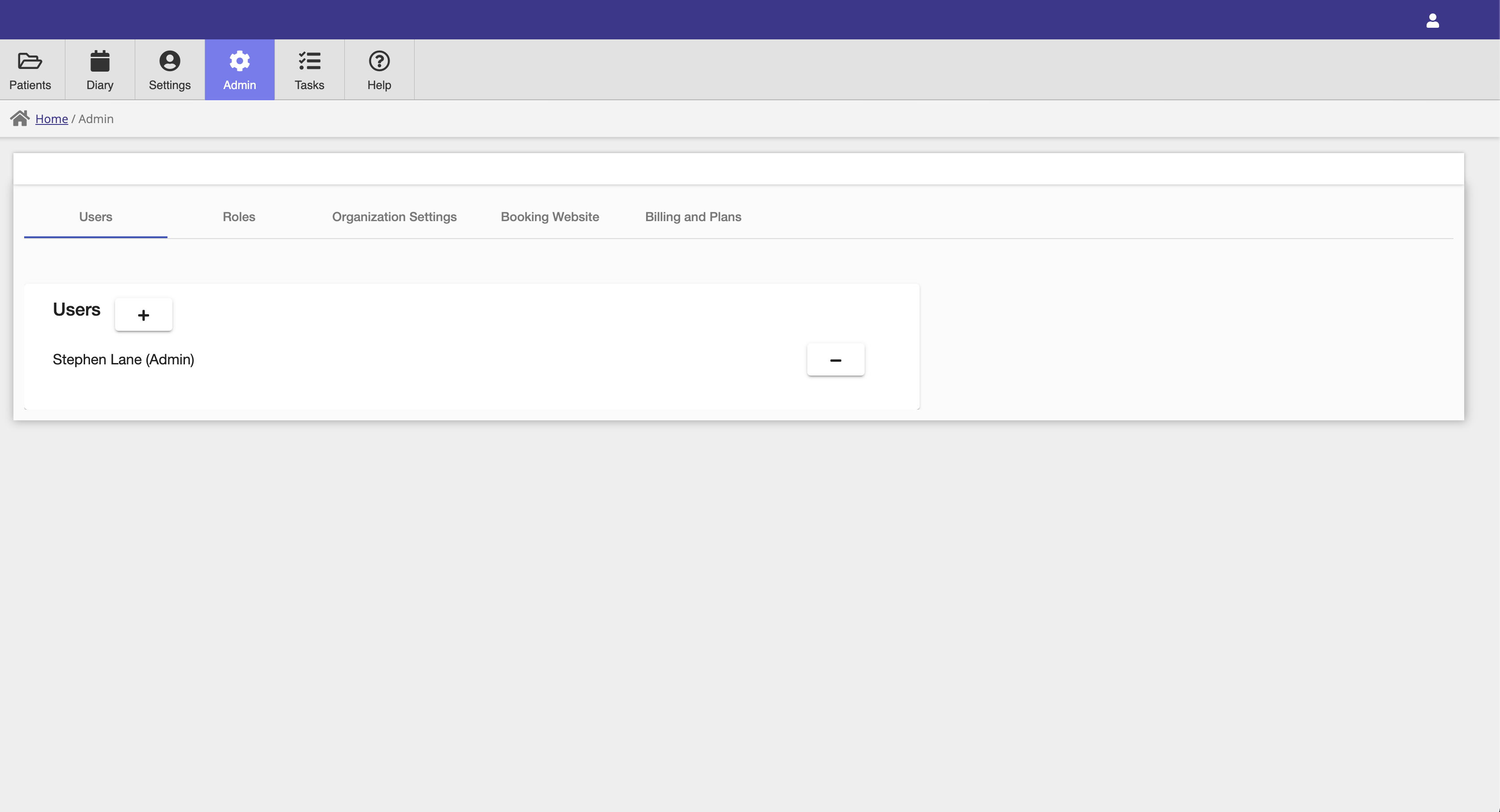
Additional application users can be added in the Users tab by clicking the + button. Once a user has been added, they will receive an email prompting them to set a password for their account.
You can also remove users from your account when necessary by selecting the - button beside a user's name.
Roles
There are three different user roles to which a user can be assigned.
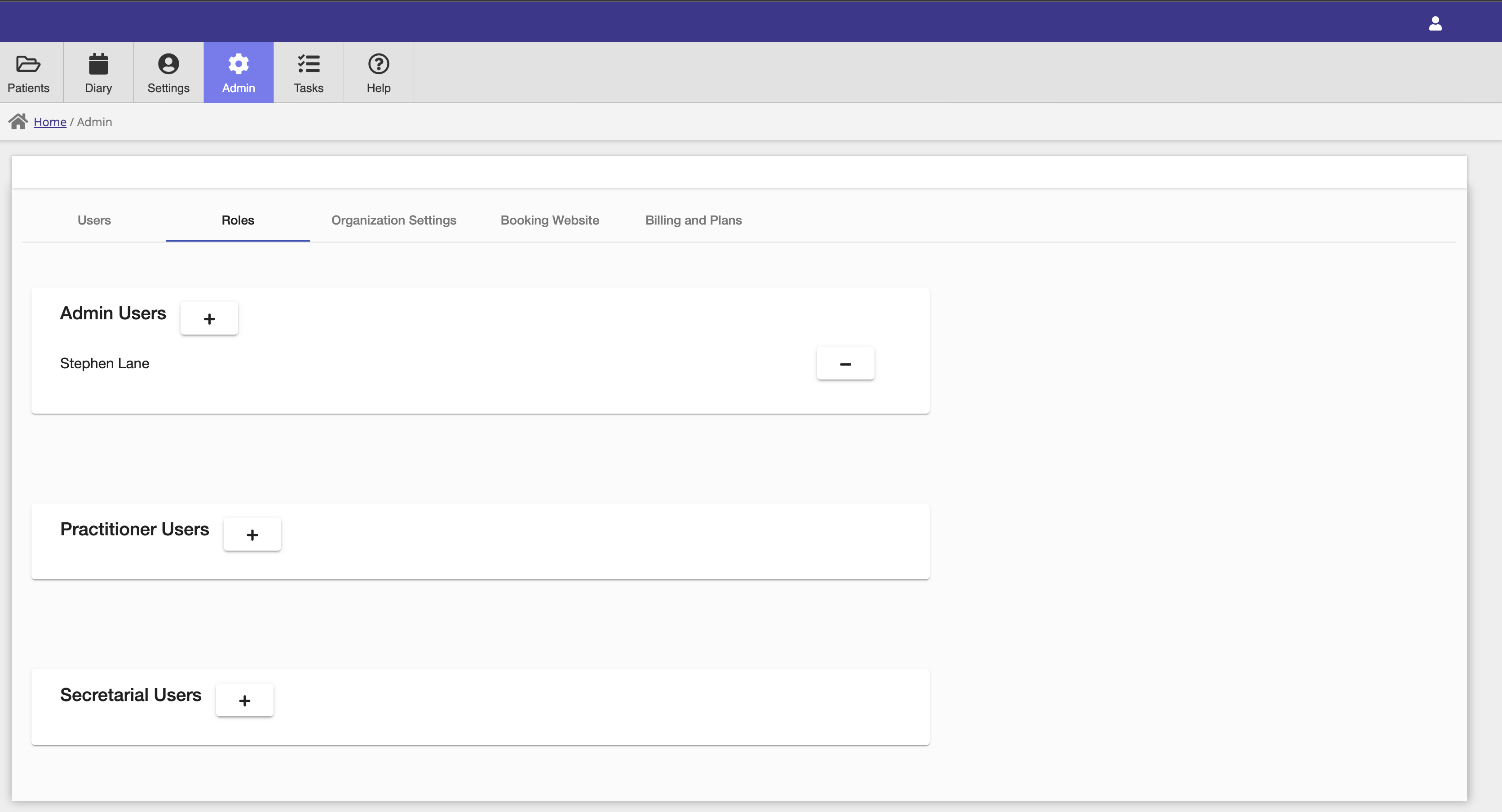
- Admin users have access to all application functionality including admin settings.
- Practitioner users have access to patient, visit, calendar and non-admin functionality.
- Secretarial has access to calendar functionality only.
Secretarial users are free and don't count toward your subscription's paid user quantity — see Free Secretarial Users.
Clinical Note Privacy
Session notes are treated differently from the rest of a client's record:
- Admin users can never see the content of a note they didn't personally write themselves, regardless of role or the setting below. Schedules, contact details, and payments remain visible to admin as normal — this restriction only applies to note content.
- Practitioner users can always see notes they wrote themselves, and can see other practitioners' notes only if your organisation's note-sharing setting allows it.
Note Visibility
Under Admin Settings → Forms → Consultation Wizard, choose how notes are shared within your practice:
- Private to treating clinician — only the clinician who wrote a note can read it. This is the default for counselling and psychology practices.
- Shared within clinical team — any practitioner on your team can read any client's notes. This is the default for other practice types.
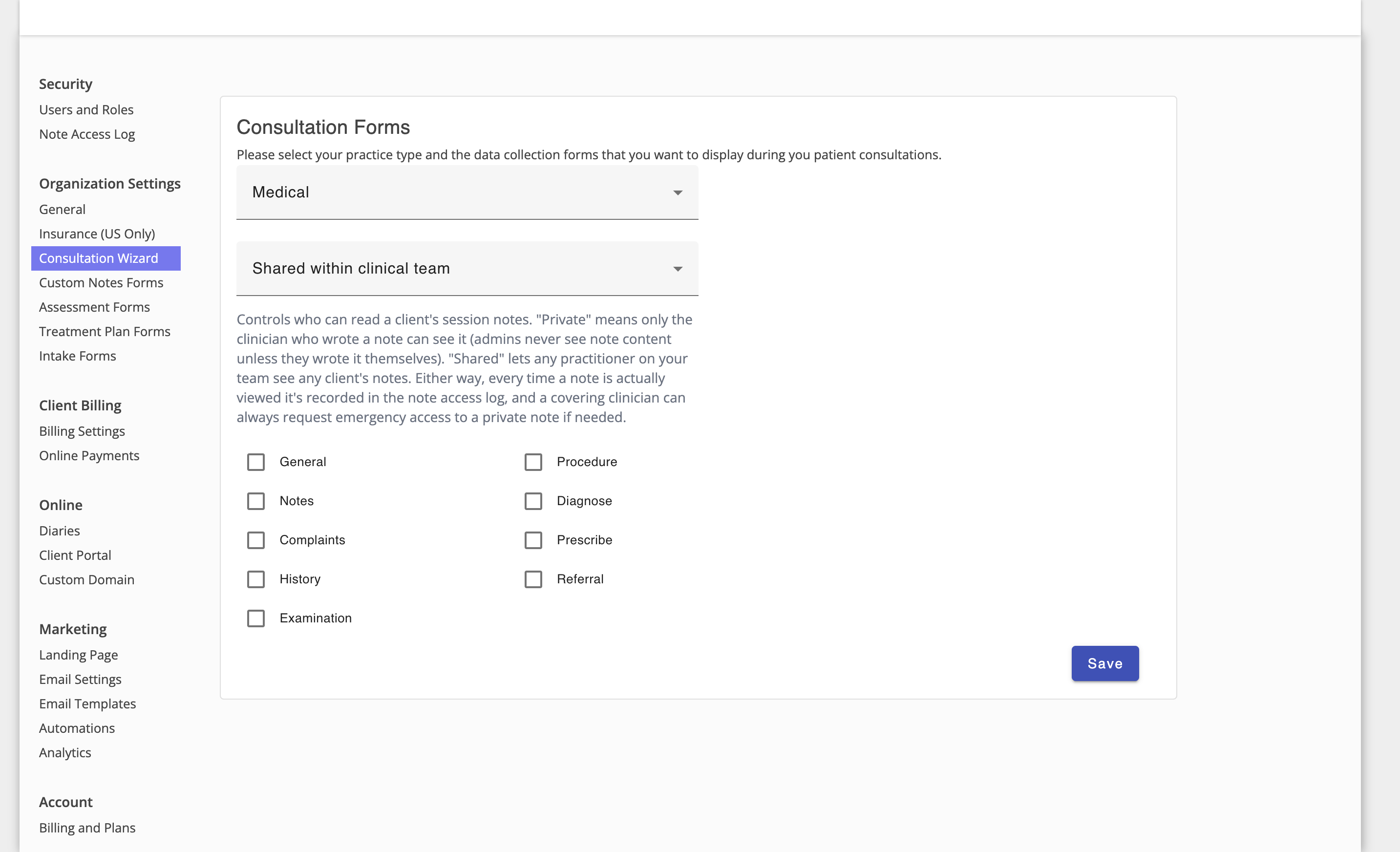
Whichever setting you choose, every time a note is actually viewed or edited it's recorded in the Note Access Log.
Emergency Access
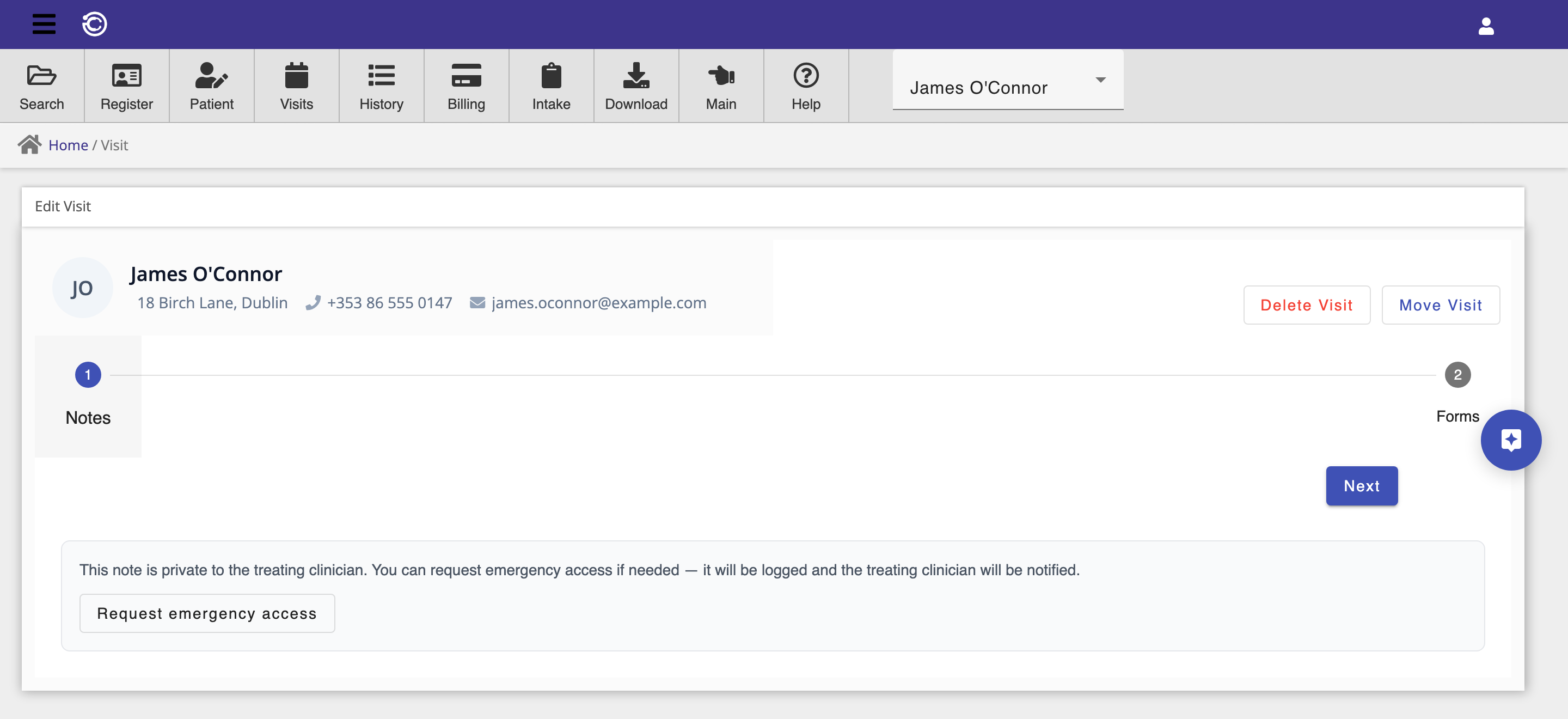
If a covering clinician needs to read a client's private note — for example the treating clinician is unreachable during a crisis — they can request emergency access directly from the note. This requires a stated reason, is logged loudly as an emergency-access event, and the treating clinician is notified by email. It does not grant any standing access — the note reverts to its normal visibility rule immediately afterward.