Marketing Automation
Marketing Automation in Consultationly lets you build workflows that send emails, introduce delays, and assign tasks to your team — triggered automatically when key events happen in your practice. This means routine follow-ups, lead nurtures, and appointment reminders happen without manual effort.
Marketing Automation is accessed via Admin Settings → Marketing.
Automations
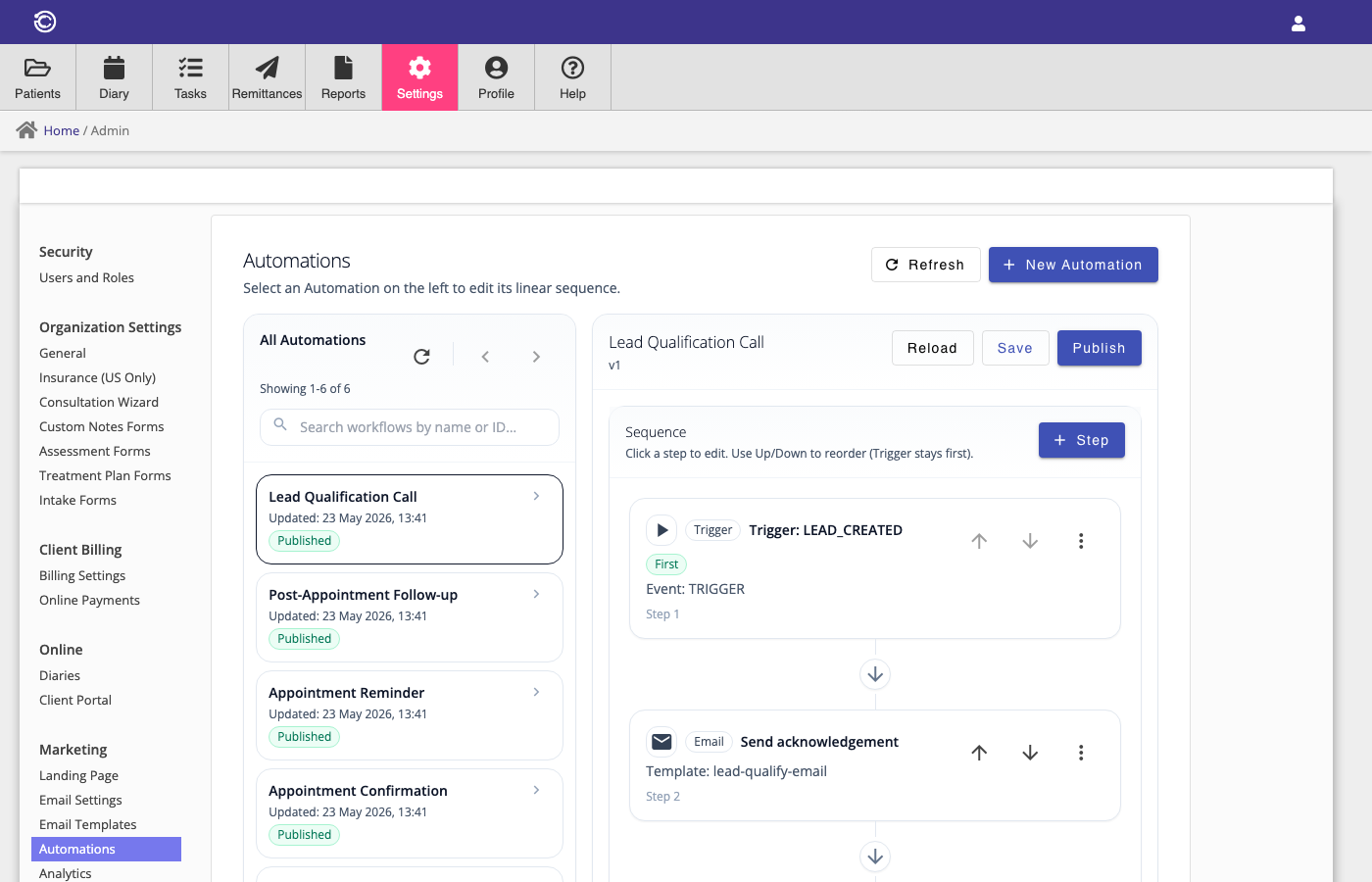
The Automations tab lists all of your workflow automations. Each automation defines a series of steps that run in order when a specific trigger event occurs. You can create your own automations or use one of the pre-built templates provided for your practice type.
Built-in Automations
When your account is set up, the following automations are created automatically based on your practice type. They are ready to use and can be customised to suit your needs.
- Welcome New Patient — Sends a welcome email when a new patient record is created.
- New Lead Nurture — Sends an initial enquiry response when a new lead is received, then waits 2 days before sending a follow-up email.
- Appointment Confirmation — Sends a confirmation email when an appointment is scheduled.
- Appointment Reminder — Sends a reminder email 24 hours before an appointment.
- Post-Appointment Follow-up — Waits one day after an appointment is completed, then sends a follow-up email.
- Lead Qualification Call — Sends an acknowledgement email to a new lead, then creates a task for your team to call and qualify the lead.
Creating an Automation
To create a new automation, click the + button in the Automations list. Enter a name for the automation and click Create. The automation will open in the workflow editor where you can add steps.
Editing an Automation
Select any automation from the list to open the workflow editor. Use the step builder to add, edit, reorder, or remove steps. When you are done, click Save to save your changes.
Click Publish to make the automation live. Only published automations will execute when a trigger event occurs. Unpublished automations are saved as drafts and will not run.
Automation Steps
Each automation is made up of one or more steps that execute in sequence. The first step must always be a Trigger step. The following step types are available.
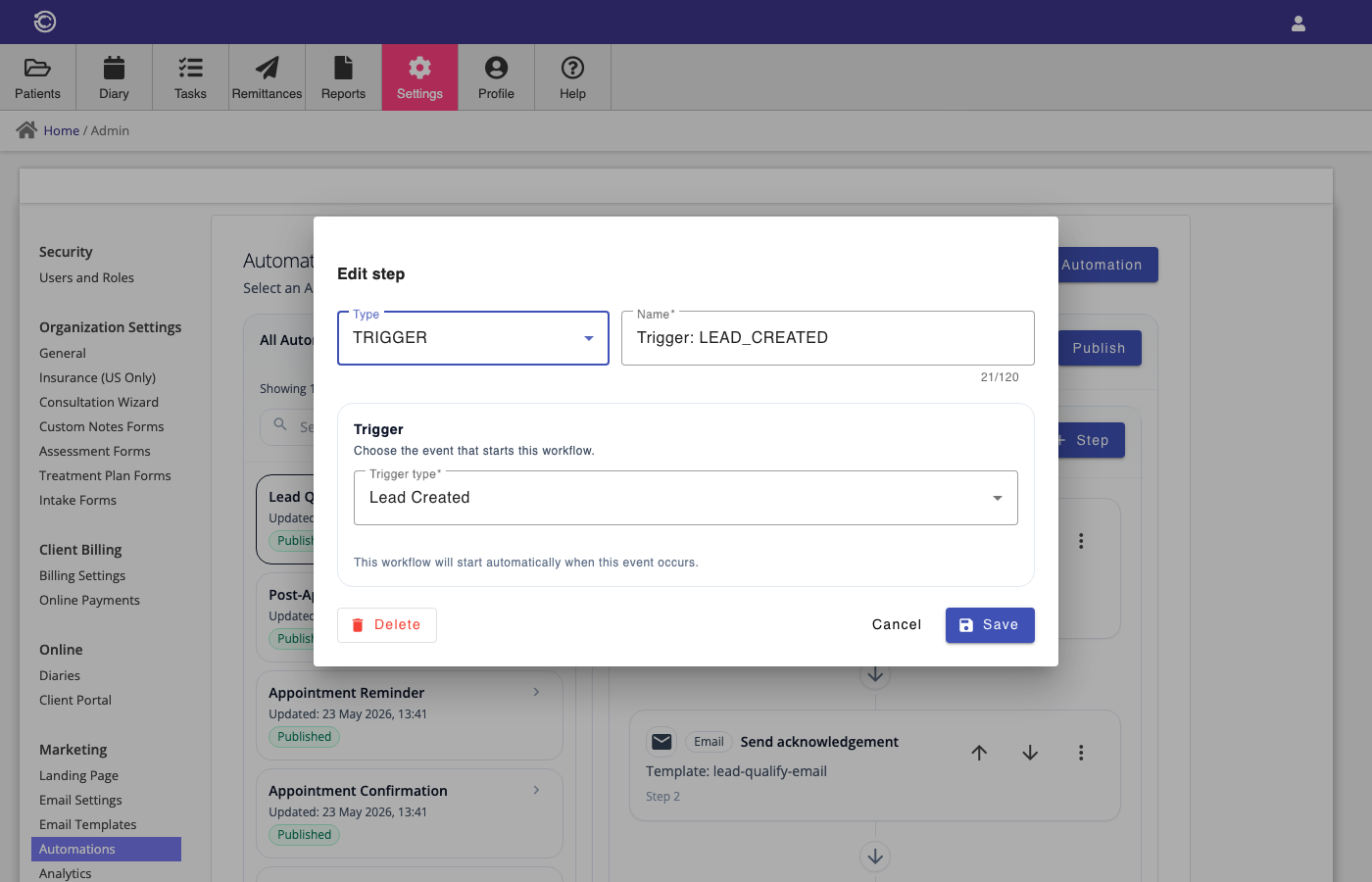
Trigger
The trigger step defines what event starts the automation. You can choose from the following events:
- Contact Created — fires when a new patient or contact record is created.
- Lead Created — fires when a new lead or enquiry is received.
- Appointment Scheduled — fires when a new appointment is booked.
- Appointment Reminder — fires automatically 24 hours before an upcoming appointment.
- Appointment Completed — fires when a visit or appointment is marked as completed.
Each automation can only have one trigger step, and it must be the first step in the sequence.
The email step sends an email to the contact associated with the automation. You select an email template to use, which controls the subject, sender name, and body of the email.
You can use template variables in the subject and body, such as {{firstName}}, to personalise the message for each contact. Variables are substituted automatically when the email is sent.
For email steps to work, you must have a connected email account configured in Email Settings. See Email for more information.
Delay
The delay step pauses the automation for a specified amount of time before continuing to the next step. You set the amount and unit:
- Minutes — short pauses, useful for testing.
- Hours — pause for a number of hours.
- Days — pause for a number of days (most common).
For example, a delay of 2 days after a welcome email gives time before sending a follow-up.
Manual
The manual step pauses the automation and creates a Task in Consultationly for a member of your team to complete. This is used when a human action is required before the automation can continue — such as making a phone call, reviewing a record, or sending a personalised message.
When the automation reaches a manual step:
- The automation enters a Waiting state.
- A task is created and assigned to the selected team member (or the organisation by default).
- The task appears in the Tasks section of Consultationly.
- When the team member completes the task and closes it, the automation automatically resumes and continues to the next step.
You can optionally specify which team member the task should be assigned to. If left blank, the task is assigned to an admin user.
Step Editor
When you add or edit a step, a dialog opens with the fields relevant to that step type. Required fields are indicated. Click Save to save the step, or Delete to remove it from the automation. Changes are not applied to the automation until you click Save in the main editor.