Booking Website
You can publish a booking website to market your business and provide a professional booking experience to new and existing clients. You can configure the website in the Admin settings menu.
Your booking website is served from a Consultationly address by default. You can also serve it from your own branded web address (e.g. booking.mypractice.com) — see Custom Domain.
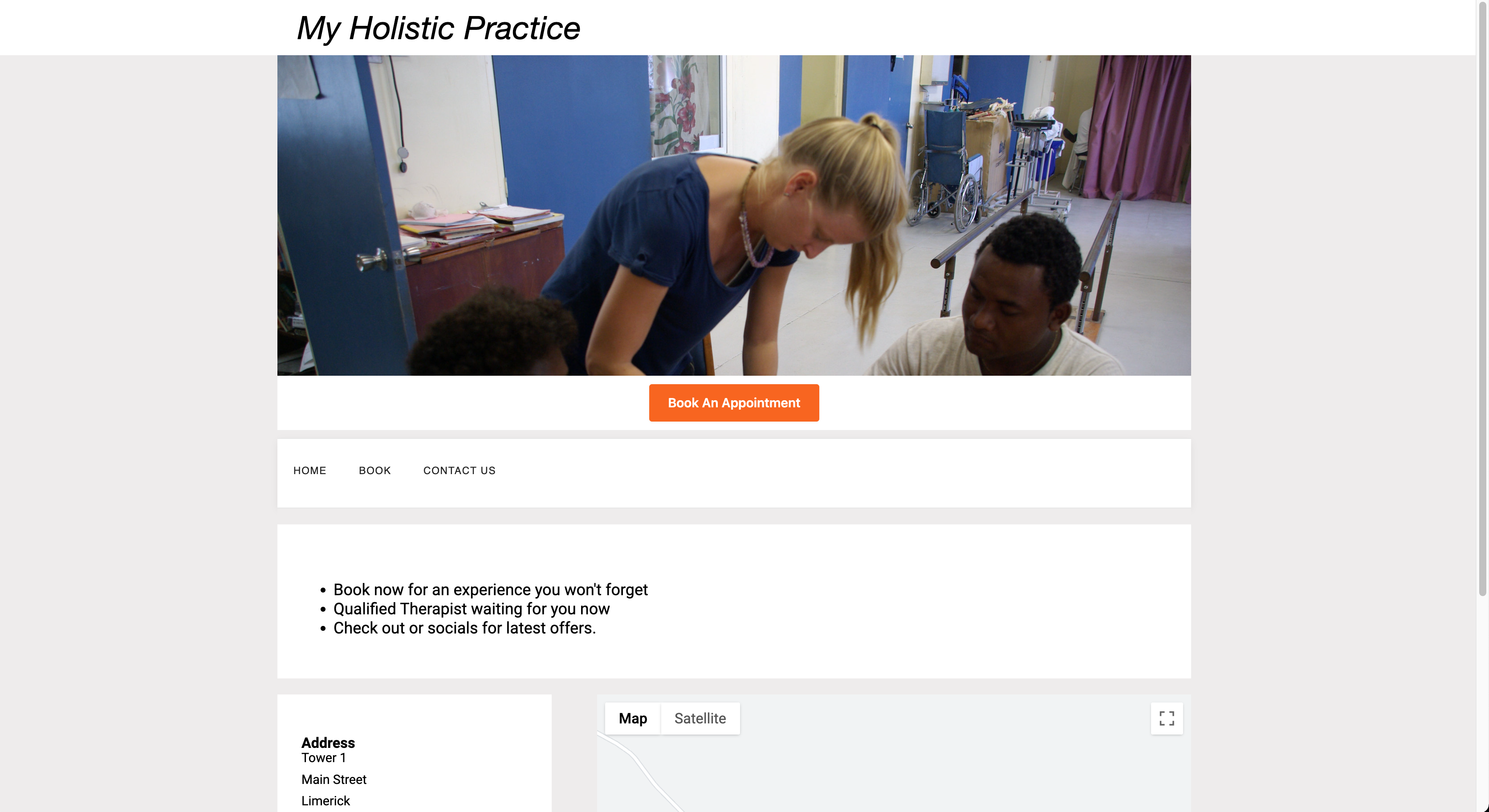
The website opens with your practice name and a Book an appointment button over your chosen header image, followed by your homepage sections (configurable in Booking Website settings), contact details and location map:
Built-in pages
Every website includes a set of ready-made pages, populated from your admin settings and linked from the site's footer:
- About — your practice description, what to expect, and clinician credentials
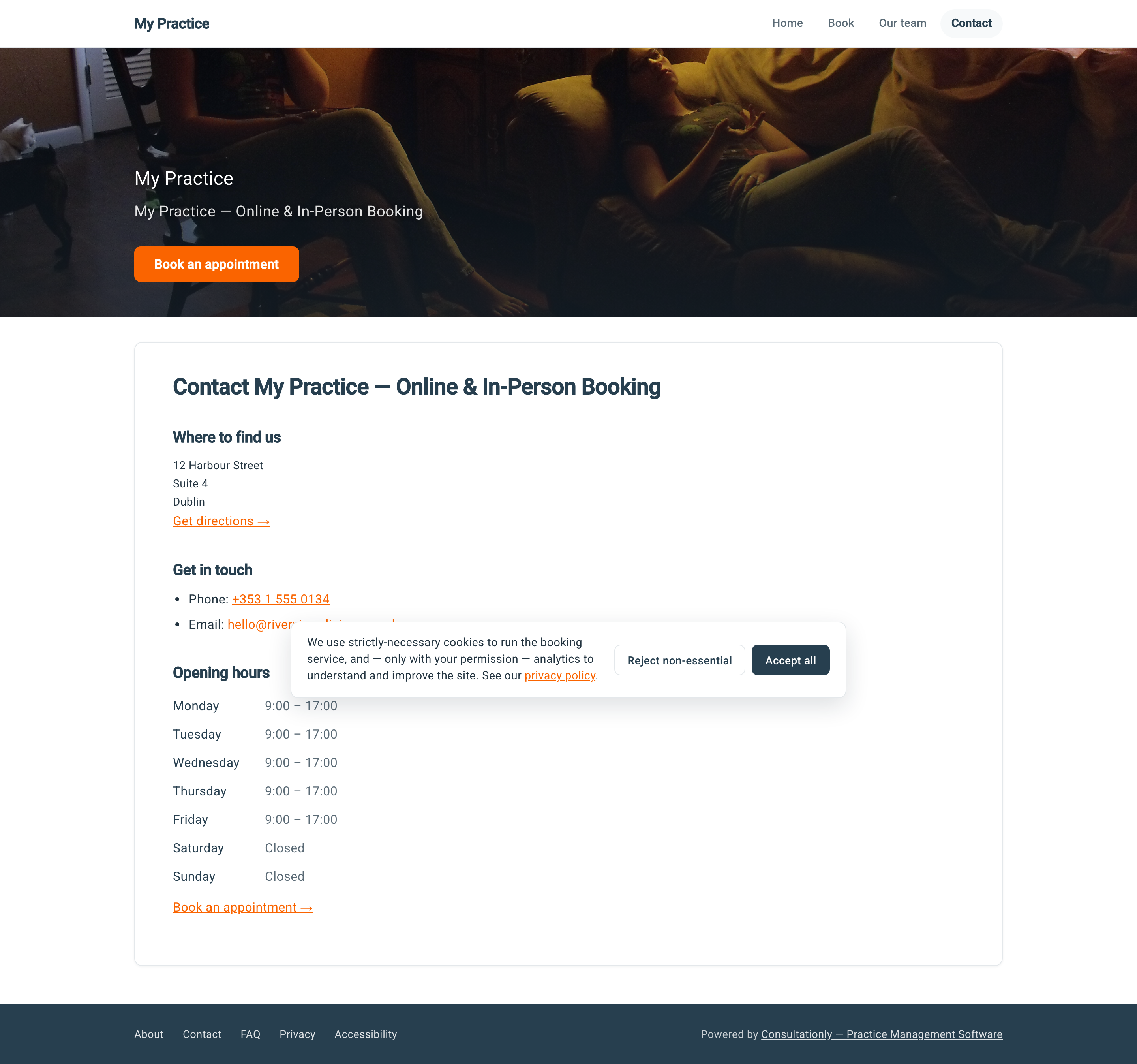
- Contact — address, phone, email, opening hours and directions
- FAQ — your frequently asked questions (also eligible for Google FAQ rich results)
- Privacy and Accessibility statements
Custom pages
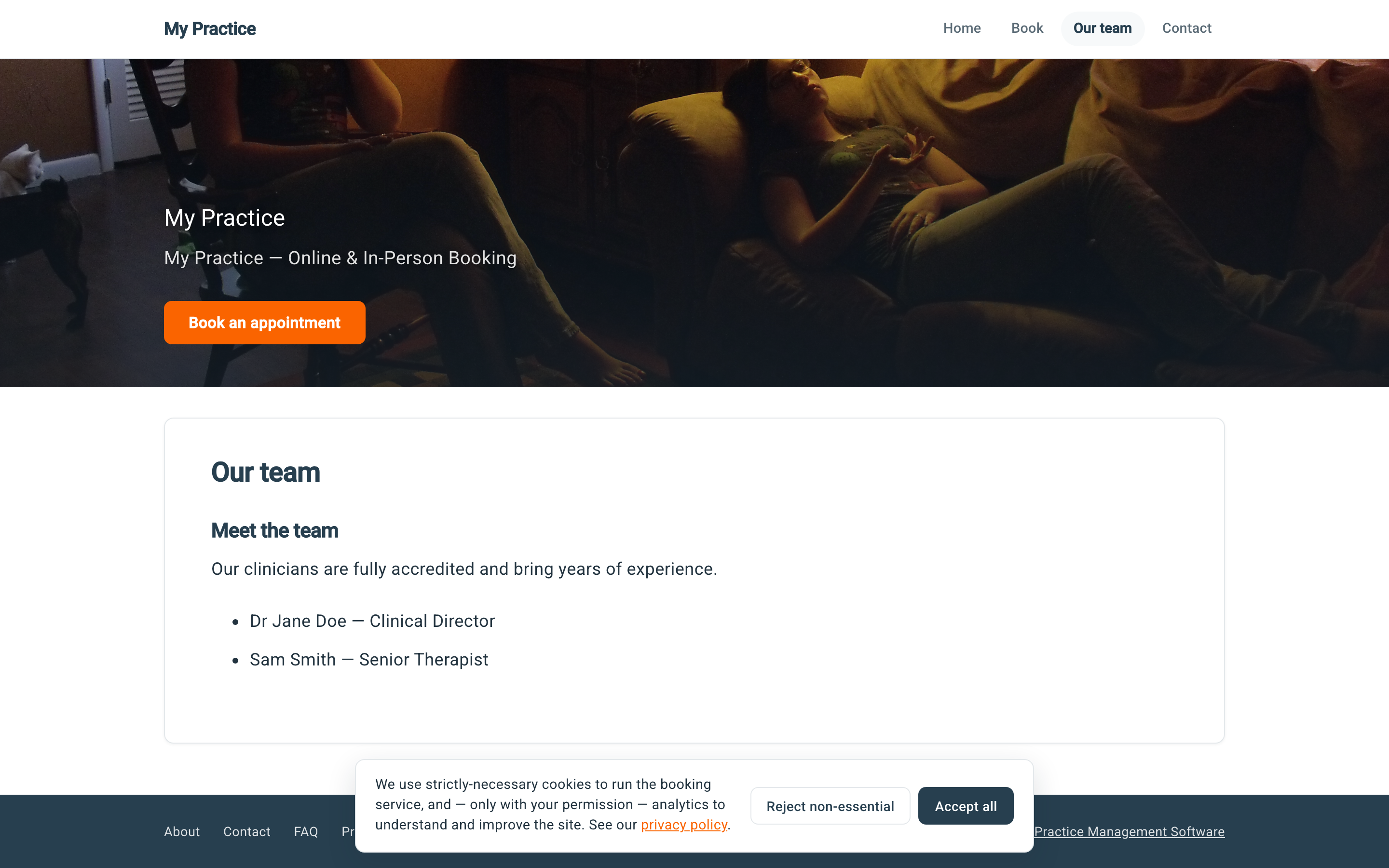
You can add your own pages — for example Our team, Pricing or Treatments — from the Custom pages tab of the website editor. Each custom page appears as its own link in the website's top navigation:
Online booking
In addition to publishing a website, you can also link one or more of your calendars to your website to allow on-line bookings. Calendars need to have web booking enabled to facilitate on-line bookings.
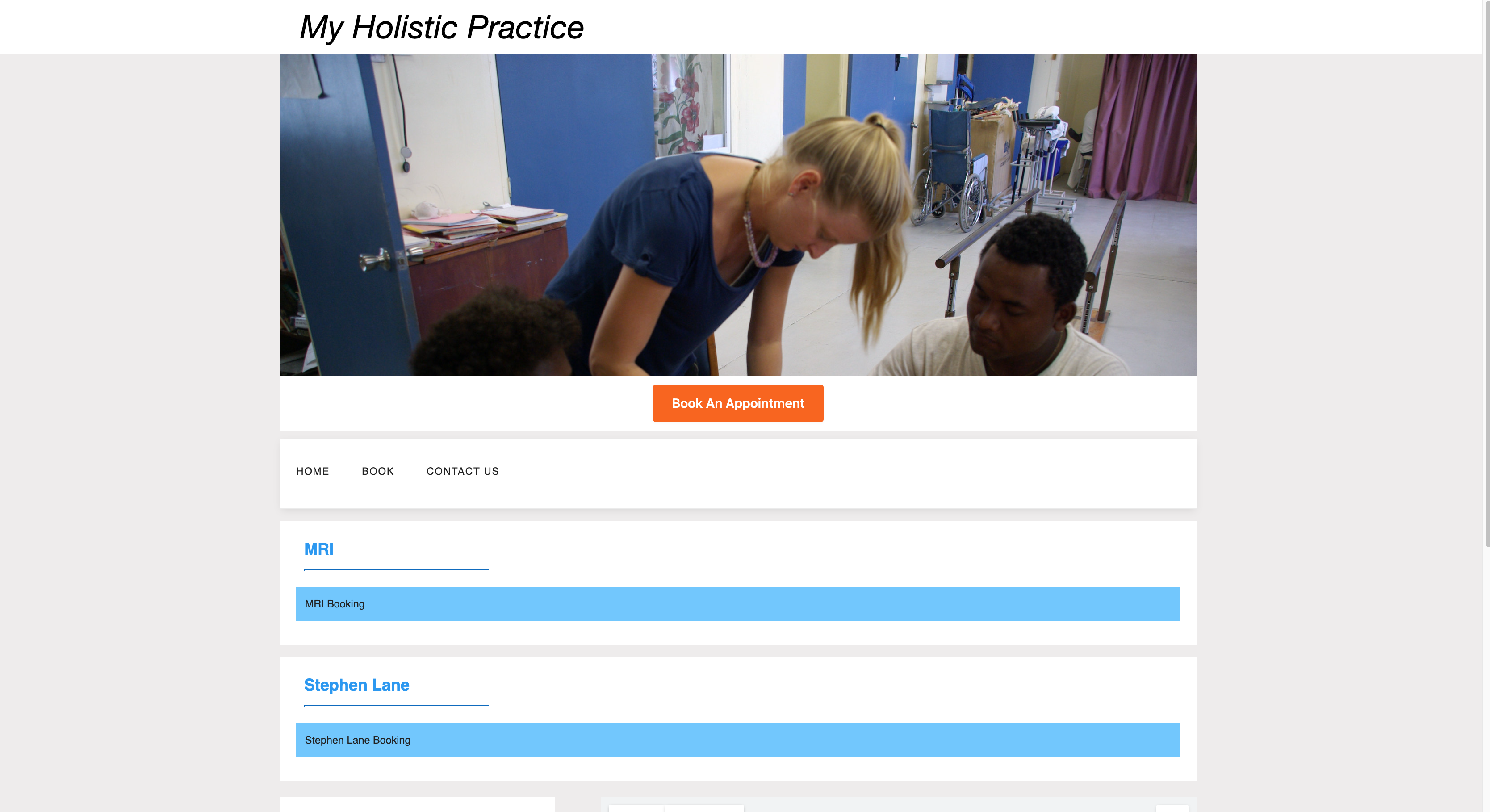
Clicking on one of your calendar services will bring users to the on-line booking form.
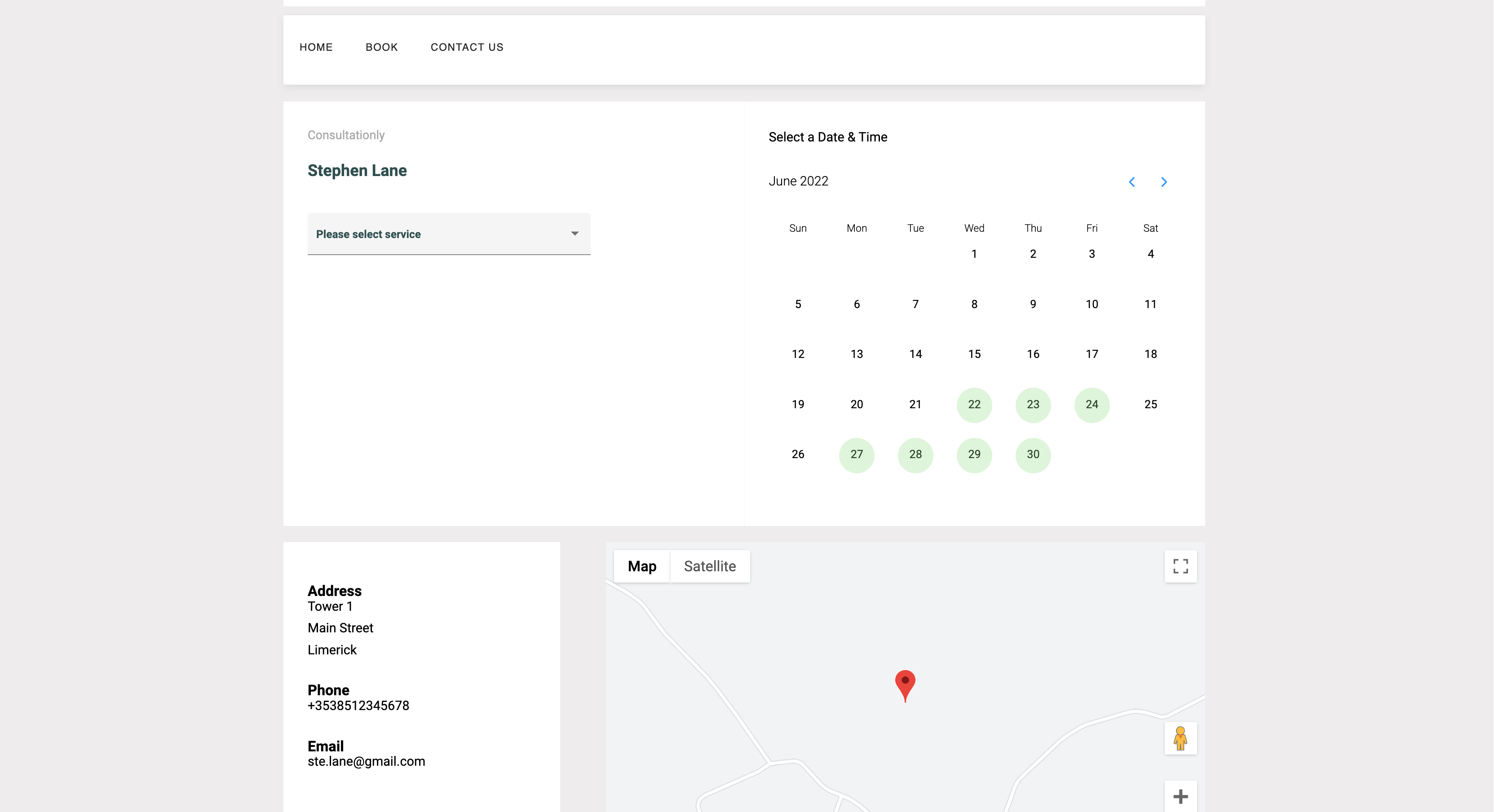
Once a calendar booking has been made online, an entry will be added to your calendar, and reminders will be sent to both you and your client.
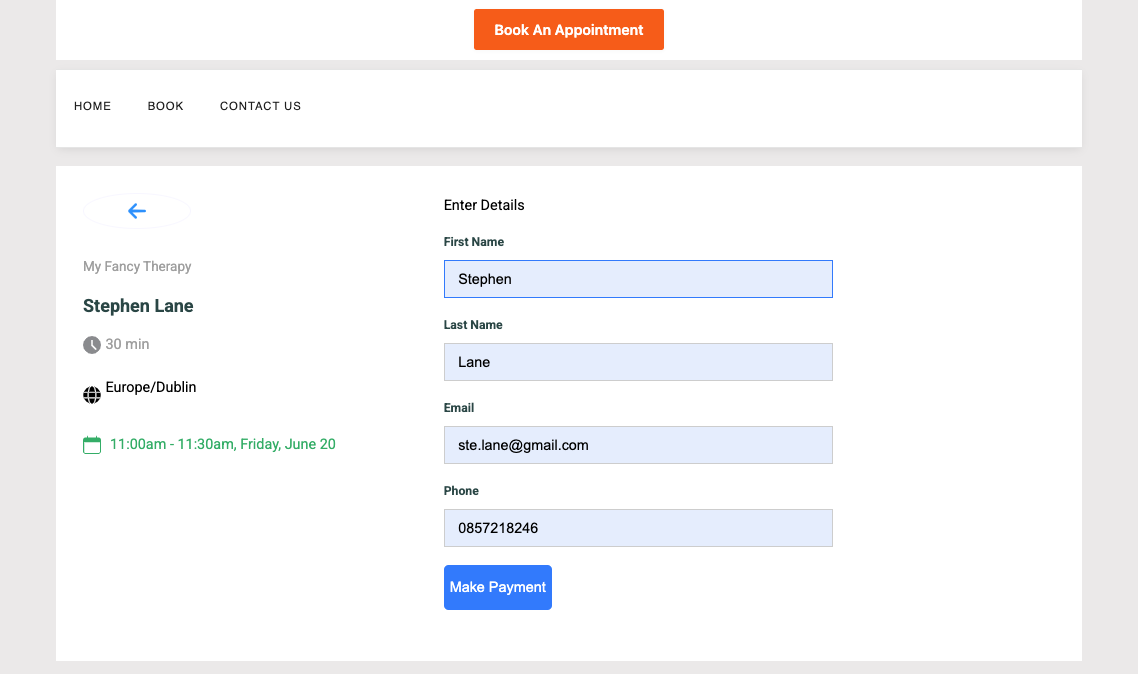
If any of your services are enabled for on-line payments, your clients will be prompted to pay before the booking can be completed.
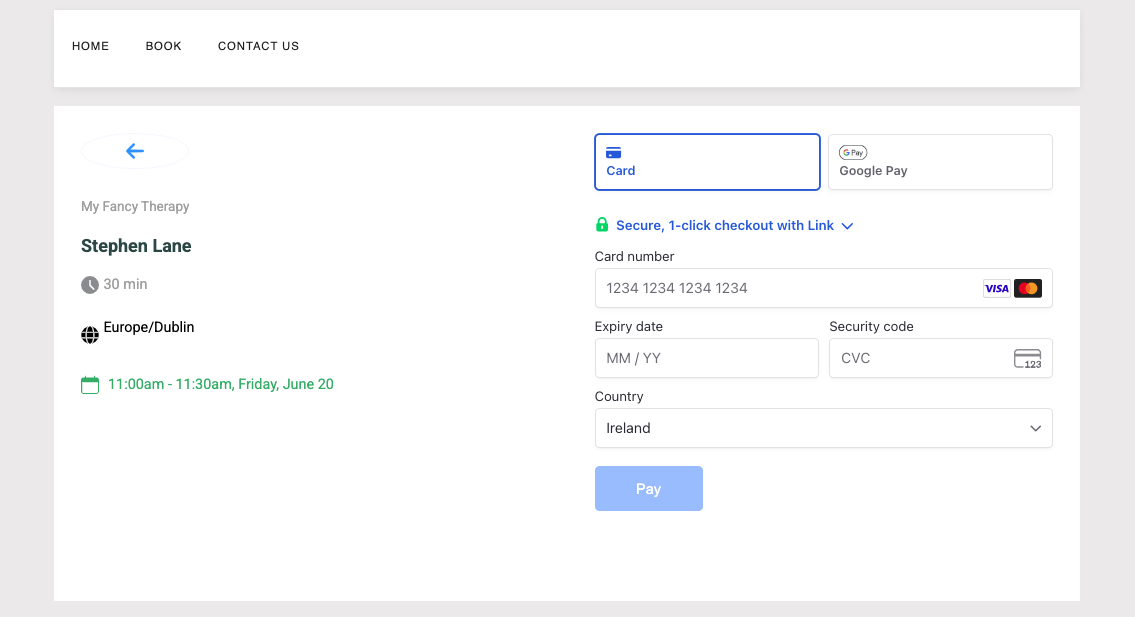
Once the online payment is complete, the payment will be shown in the billing section for that client.