Automation Monitoring
The Analytics tab gives you visibility into every contact that has entered an automation, showing the current status, the steps that have been executed, and any errors that occurred. An analytics summary at the top gives you headline performance metrics across your automations.
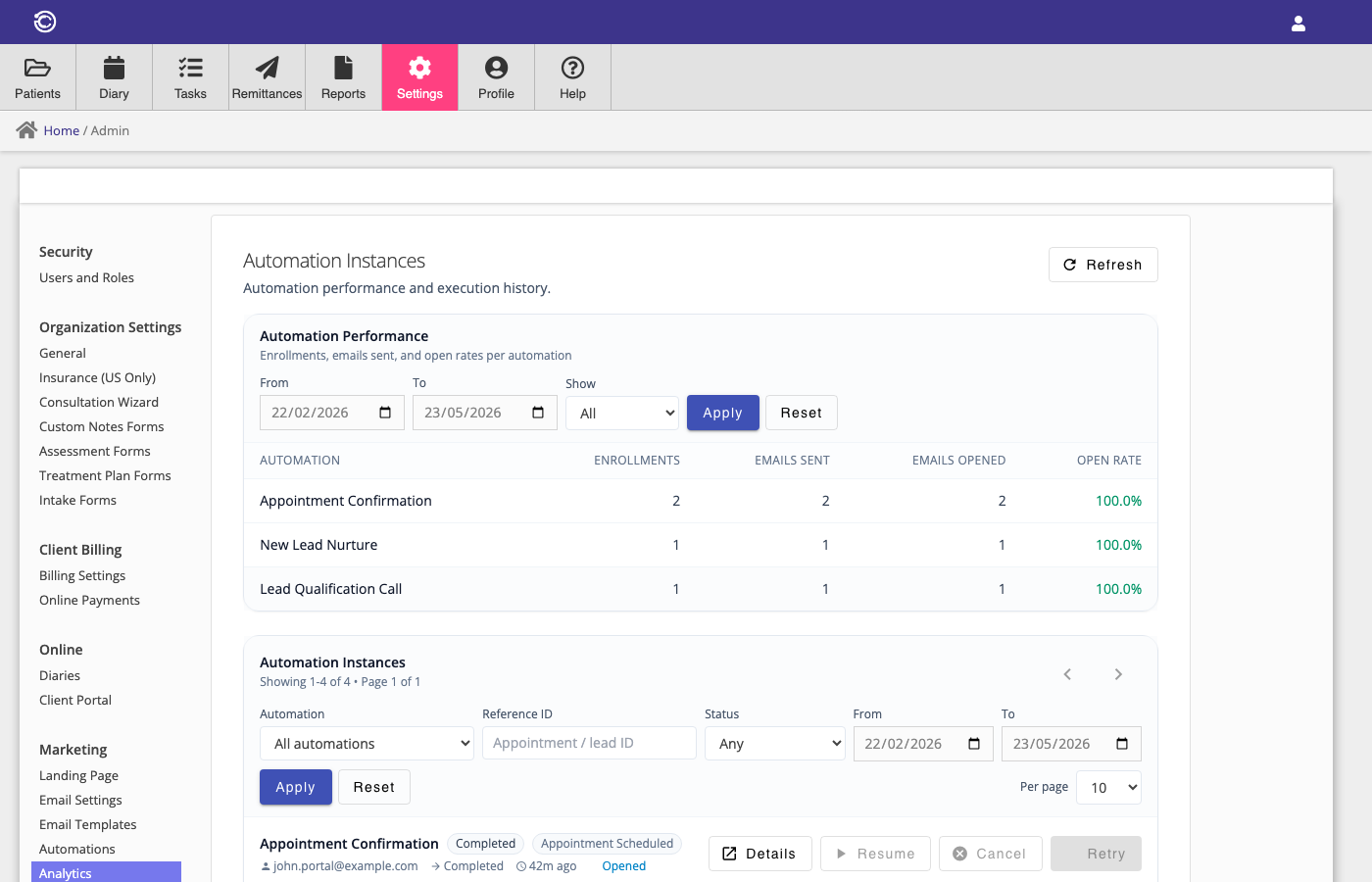
Analytics Summary
At the top of the Sequence Instances page, a summary table shows performance metrics for each of your published automations. The date range defaults to the last 90 days and can be adjusted using the From and To date filters.
The summary shows the following metrics for each automation:
| Metric | Description |
|---|---|
| Enrollments | Total number of contacts that have entered the automation |
| Emails Sent | Number of email steps that completed successfully |
| Emails Opened | Number of those emails that were opened by the recipient |
| Open Rate | Percentage of sent emails that were opened |
Viewing Instances
Below the summary, the instances list shows each contact that has entered an automation. You can filter the list using the following options:
- Automation — filter by a specific automation.
- Status — filter by the current execution status (
Running,Waiting,Completed,Failed,Cancelled). - Correlation ID — search by a contact email address or entity identifier to find a specific contact's automation run.
- Date range — filter by the date the automation started.
Instance Statuses
| Status | Meaning |
|---|---|
Running |
The automation is actively executing steps. |
Waiting |
The automation is paused, either on a Delay step or a Manual step. |
Completed |
All steps have finished successfully. |
Failed |
An error occurred during execution. See the instance details for the error message. |
Cancelled |
The automation was manually cancelled. |
Instance Details
Click any row in the instances list to open the details panel. This shows:
- The automation name, trigger event, and the contact's email address.
- The full step-by-step execution history, including the status and timestamp of each step.
- For email steps: whether the email was opened and when it was first opened.
- For manual steps: who completed the task, when, and any comment they added.
- Any error messages if the automation failed at a particular step.
Actions
You can take the following actions on an instance from the instances list or the details panel:
- Resume — resumes an automation that is in a
WaitingorFailedstate. Useful if a delay has been resolved or an error has been corrected. - Retry — re-attempts the last failed step of a
Failedautomation. - Cancel — stops the automation permanently for that contact. The instance status is set to
Cancelledand no further steps will execute.
Email Open Tracking
When an automation sends an email, Consultationly embeds a small invisible tracking image in the email body. When the recipient opens the email and their email client loads the image, an open event is recorded against the step run. This updates the Emails Opened count in the analytics summary and sets the open timestamp in the instance details.
Note that some email clients block remote images by default, which means opens may be undercounted for contacts using those clients. The open rate should be interpreted as a lower bound rather than an absolute figure.