Task Management
The task management module allows users to create and manage practice tasks via a predefined workflow, where tasks can be created, set to in progress, and finally closed when the task is complete. This is a convenient way to manage practice tasks that need attention beyond the patient visit.
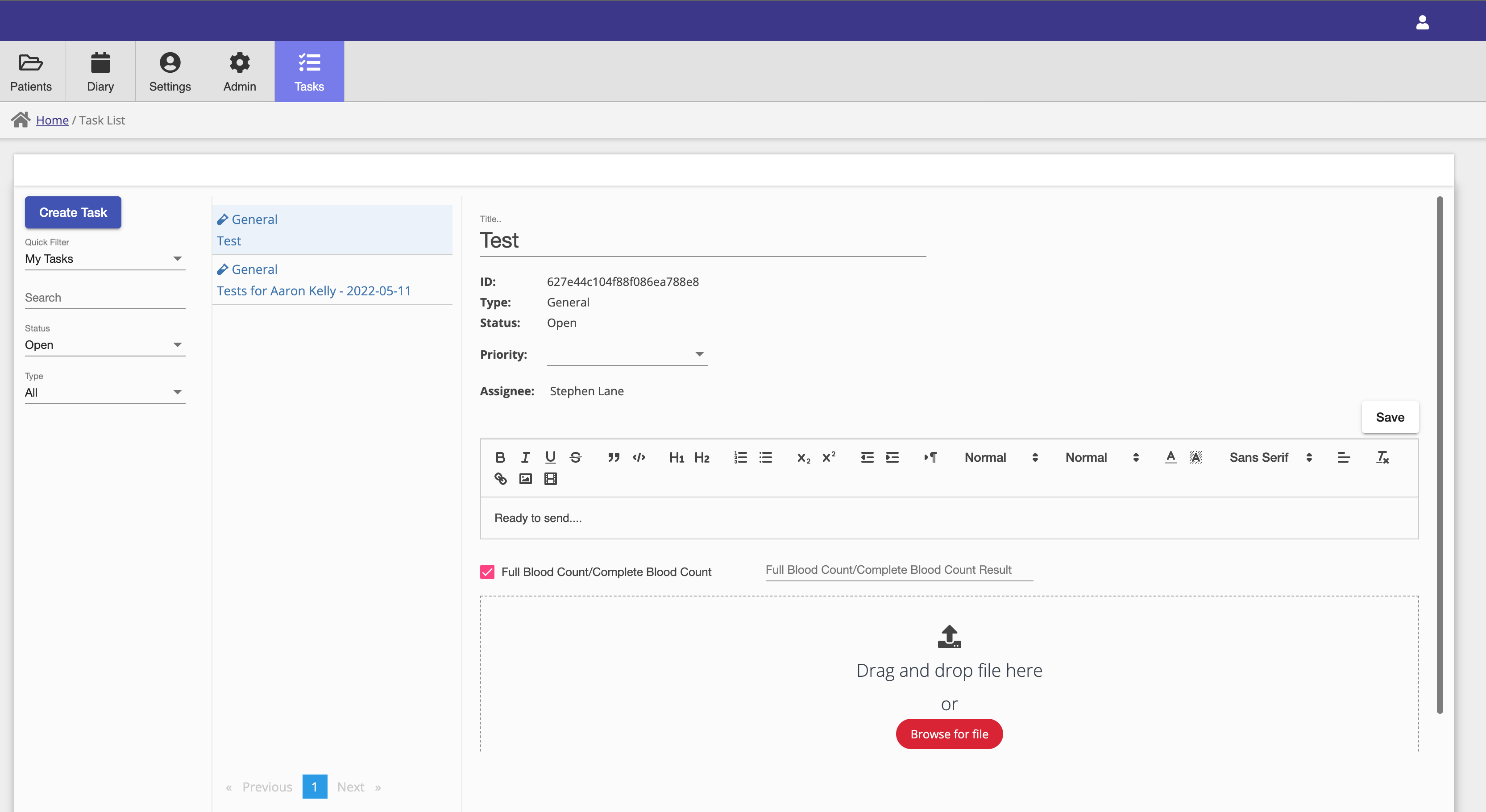
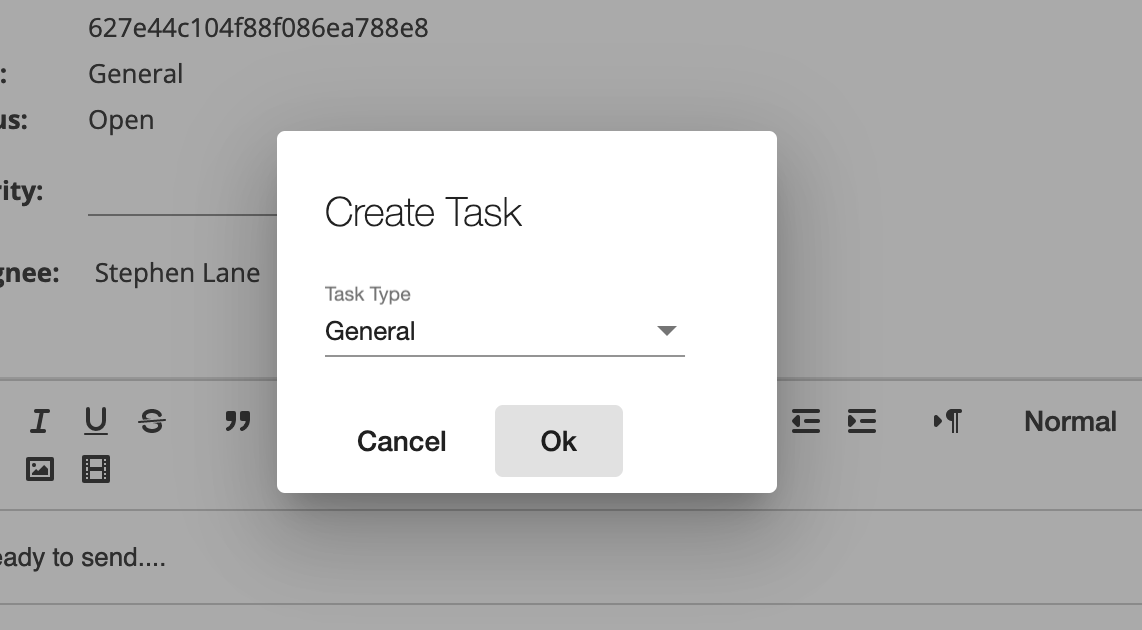
Creating a new task is achieved by clicking on the create task button on the top left hand side of the task window. In certain circumstances, tasks are created for the user to track a particular activity. For example, the visit Test step, in medical and dental mode, creates a task to track the lab order and test result actioning process.
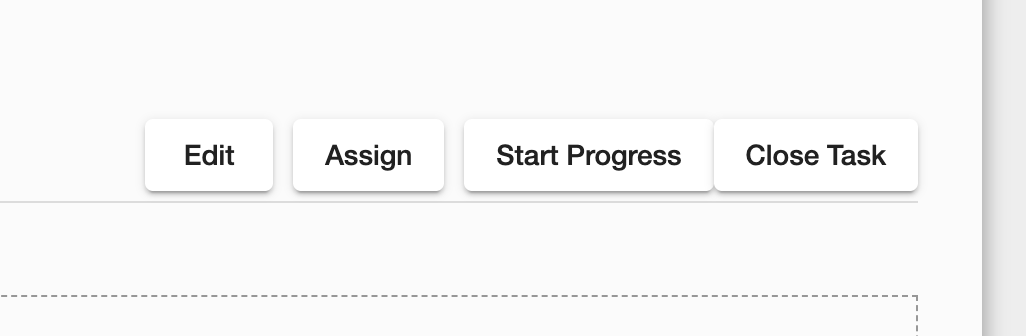
The status of a task can be updated via buttons such as Start Progress, Close Task which are shown on the task depending on the task's current state. Tasks can also be reassigned to other users or edited via the Assign and Edit buttons.
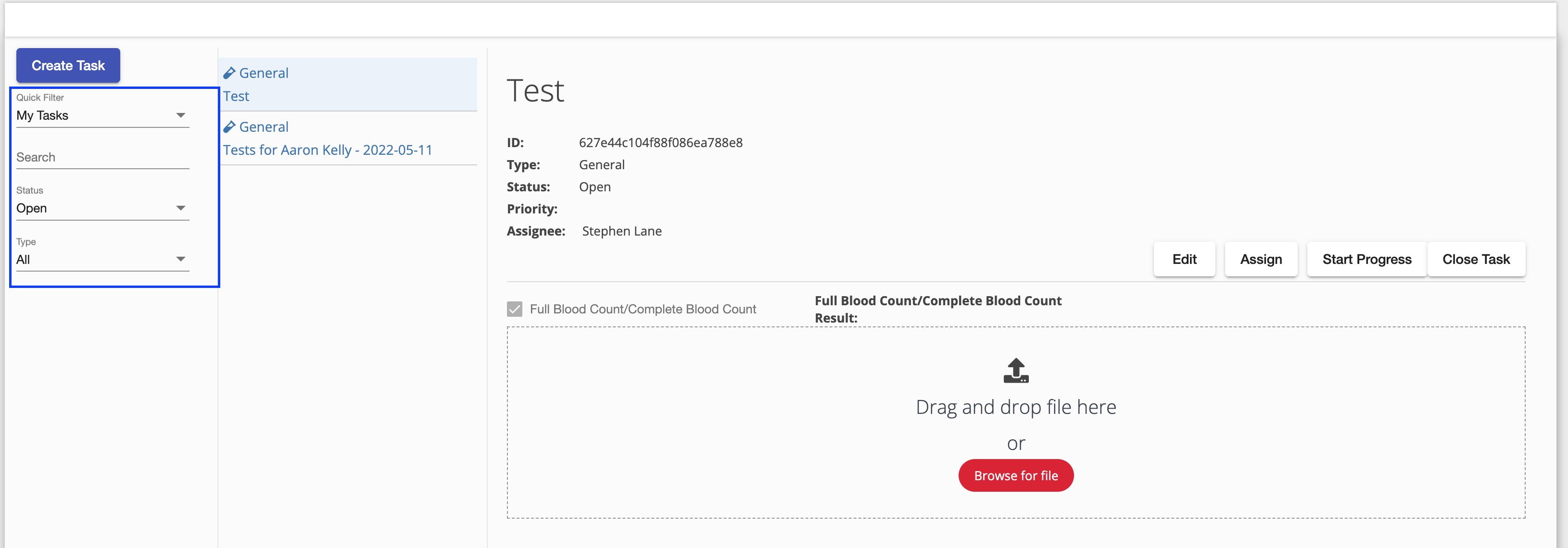
Tasks are filtered by default to show only open tasks assigned to the current user, but these filters can be updated to show closed tasks or tasks assigned to other users.
When ever Consultationly needs you to follow up on an action, it will assign you a task for that action.
Tasks can be created automatically in two ways:
- Test orders — when a lab or diagnostic test is added during a visit, a task is created to track the order and result.
- Marketing automation — when a Manual step in an automation is reached, a task is created for the assigned team member. The automation pauses until that task is closed.